Remote Access
Remote Access
Section titled “Remote Access”Organization: FrontRunnerHC
Audience: Employees authorized for remote access
Parent Reference: Summit Technology Holdings – Access Control Policy, Cryptographic Protection Policy, Acceptable Use Policy
Framework Reference: SCF – Cryptographic Protections (CRY), Access Control (AAC)
Document Type: Procedure (SOP)
Overview
Section titled “Overview”This procedure defines how employees securely access corporate workstations from home using an OpenVPN connection. It ensures that all remote sessions are encrypted, authenticated, and monitored in accordance with enterprise security requirements and regulatory obligations.
1.0 Prerequisites
Section titled “1.0 Prerequisites”- Approved remote work authorization.
- Company-managed workstation with MDM enrollment and static IP address.
- OpenVPN connection credentials.
2.0 Procedure
Section titled “2.0 Procedure”2.1 Approval Request
Section titled “2.1 Approval Request”The manager of the employee reqesting remote access must email the IT manager with the request and provide the following information:
- Employee Name needing access
- Workstation on premise that the employee will need to access
- PC that the employee will use remotely
- Justification for remote access
The IT manager will review the information, validate the referenced computers meet minimum company security requirements and provide the approval.
2.2 Corporate System Preparation
Section titled “2.2 Corporate System Preparation”The corporate system that will be remotely accessed must be prepared in order for remote access to correctly function.
-
Request a static IP address assignment from the IT department. Note this address as it will be required for 2.3 Step 3 below.
-
Note the system’s name as it will also be required for 2.3 Step 3 below.
2.3 Remote System Setup
Section titled “2.3 Remote System Setup”The system that will be used to remotely access the corporate system needs preparation including installing the approved VPN software and additional configuration.
-
Install OpenVPN Client
Download and install the OpenVPN Client software on the system that will be used to access corporate workstations. The software can be freely obtained here: OpenVPN Client Software. Choose the correct edition for the processor architecture being used.
-
Apply Configuration File
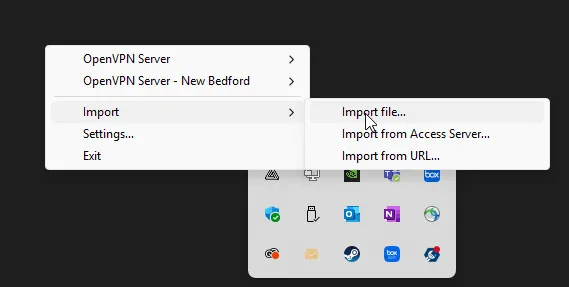
Download the OpenVPN configuration file here: Open VPN Config File. Find the OpenVPN application in the system tray, right-click it, select “Import” and “Import file…” and choose the configuration file that was just downloaded.
-
Modify HOSTS file
Locate the HOSTS file on your computer, which is found at C:\Windows\System32\drivers\etc. Open this file with notepad (or a similar text editor). At the end of the file, add a new row with the IP address and system name you noted in 2.2 Step 2 above:
<ip address> <host name>example:
192.168.30.123 FRHCD001000Save this file. If prompted to save the file in an alternate location, do so and then copy the file overtop of the existing HOSTS file. Note that it cannot be named HOSTS.txt or any other suffix.
2.4 Connecting to the VPN
Section titled “2.4 Connecting to the VPN”-
Connect
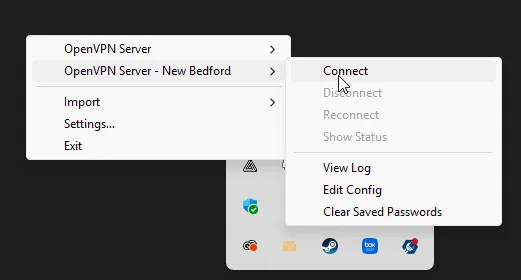
Right-click the OpenVPN application in the system tray, and choose the “OpenVPN Server - New Bedford” server and “Connect”.
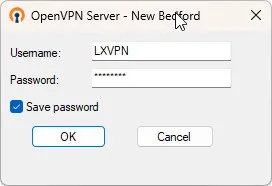
Input the credentials provided by the manager.
2.5 Remote Access
Section titled “2.5 Remote Access”Once the connection has been established, use the native RDP client utility to remotely connect to the target system.
-
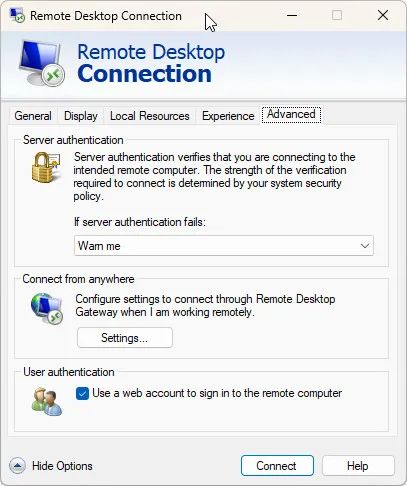
On the Remote Desktop utility, go to the Advanced tab, and check the “use a web account to sign in to the remote computer” property.
-
On the General tab, provide the remote workstation’s name that you added to your HOSTS file in 2.3 Step 3 above. Also provide your user name, in the
@frhc.com format. Click Connect. 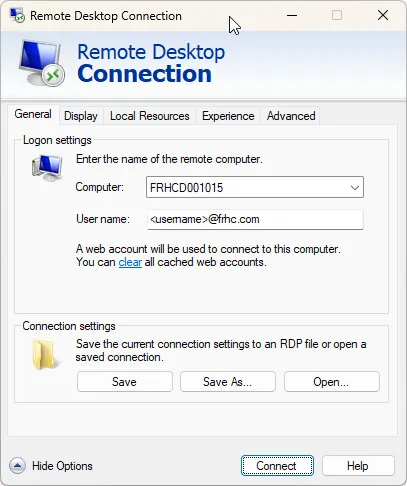
-
Provide your password and respond to any MFA prompts and your connection will be established.
3.0 References
Section titled “3.0 References”Parent Policies:
- Summit Technology Holdings – Access Control Policy
- Summit Technology Holdings – Cryptographic Protection Policy
Regulatory Alignment:
- HIPAA Security Rule 45 CFR §164.312(d)
Framework Alignment:
- SCF CRY-01, CRY-03, CRY-04, CRY-06
- SCF AAC-02 – Authentication of Users
- SOC 2 Trust Services Criteria: CC6, CC7
4.0 Revision Tracking
Section titled “4.0 Revision Tracking”| Rev | Description | Date | Approved |
|---|---|---|---|
| - | Procedure created | September 2025 | M Machin |